
Starting the Application
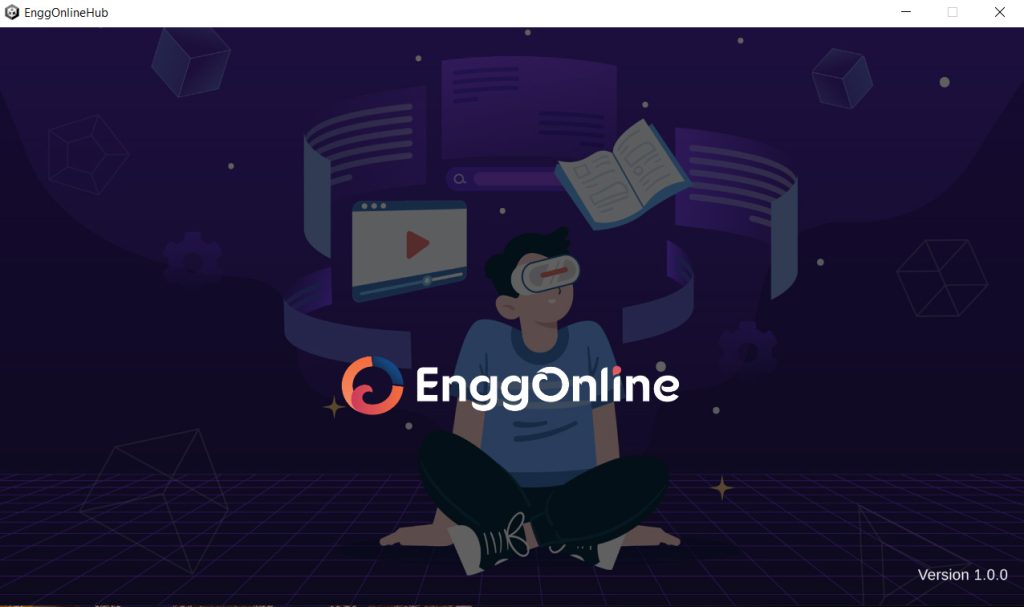
Double-click the EnggOnline Hub icon on the desktop. If prompted with a user control dialog, click “Yes” to proceed (this may not appear for admin user profiles). After clicking “Yes,” the following screen will be displayed.
Browsing the Categories
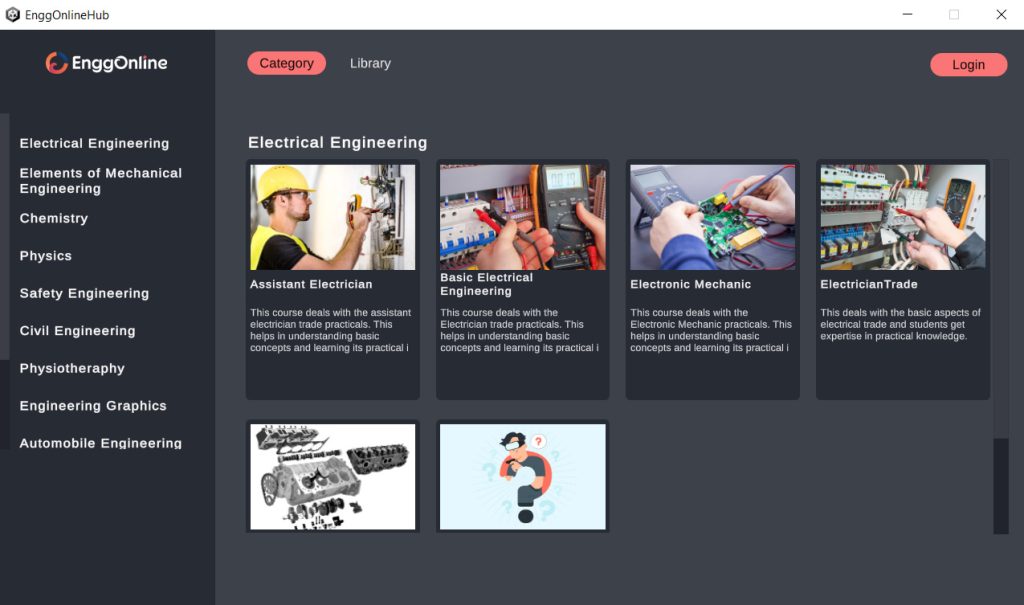
By default, the user is redirected to the “Category” section, where all the practicals and their respective categories are displayed. When the user clicks on Read more, a screen appears with a detailed description of the practical.
Log in the Application
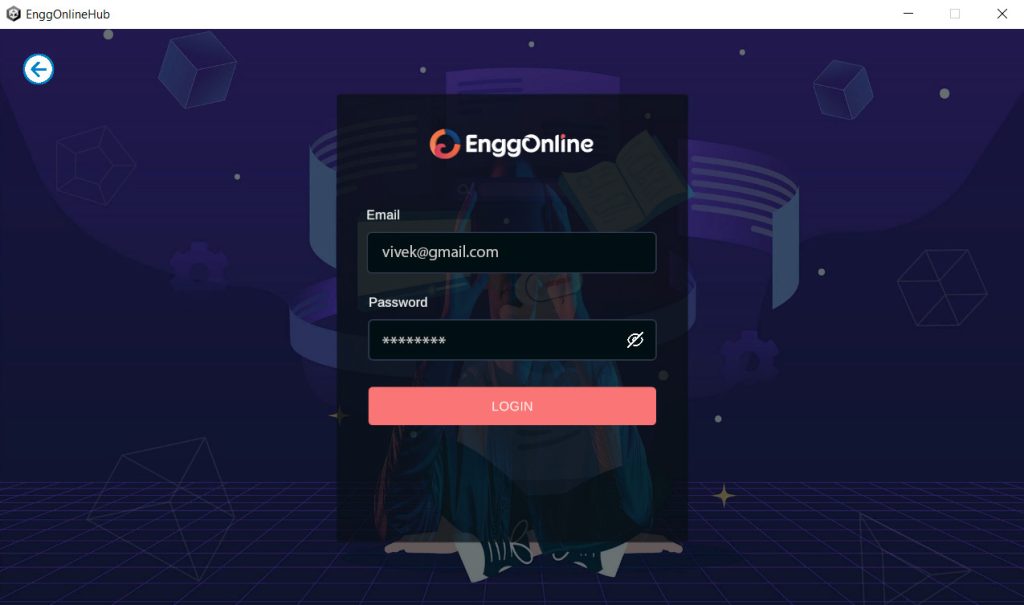
Upon clicking the ‘Login’ button, a screen will be displayed where the user can enter the email address and password associated with the user account. After providing valid credentials, click “Login” to proceed.
Application Library
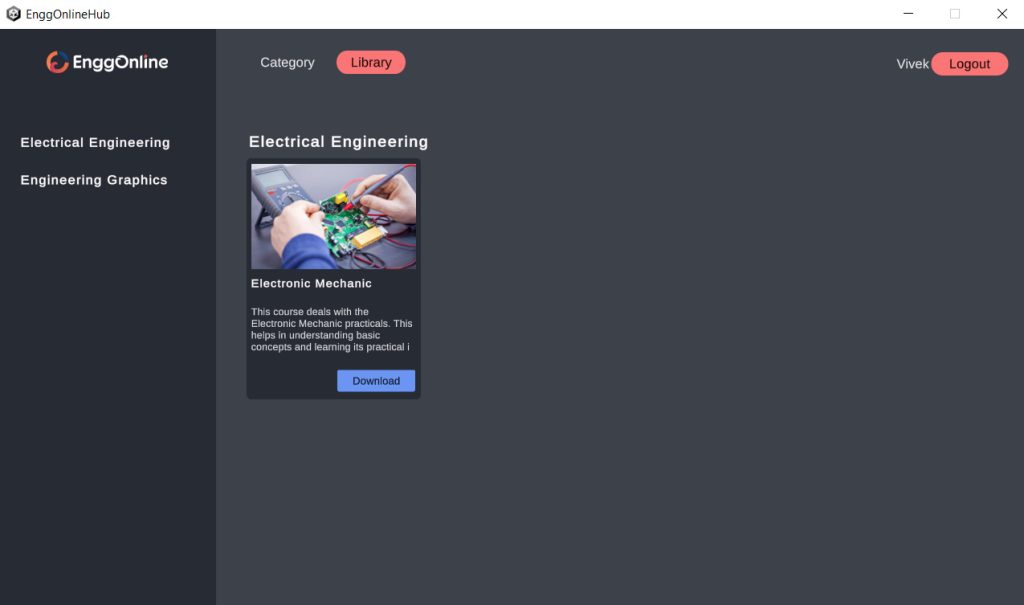
After successful login, click on the “Library” menu. Here, any purchased practicals will be displayed. Users can Download, Install, and Launch the practical from this section. Clicking the “Download” button will initiate the practical download process.
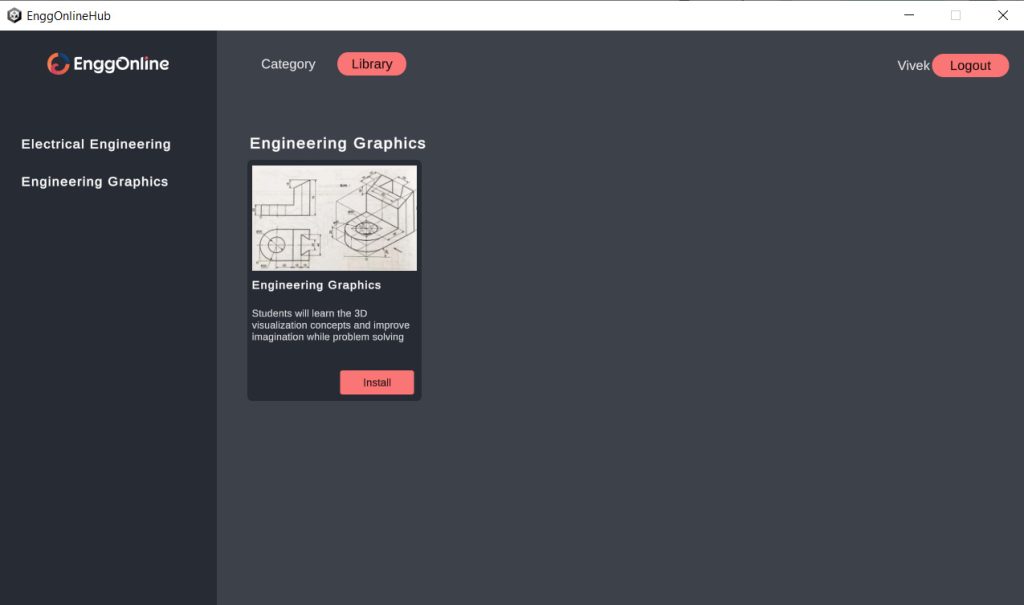
Installing the Practical
Once the practical is successfully downloaded, an “Install” button will appear. Click the button to initiate the Setup Wizard. Click “Next” to begin, then click “Install” to start the installation process. After installation completes, click “Finish” to conclude the process.
Launch the Practical
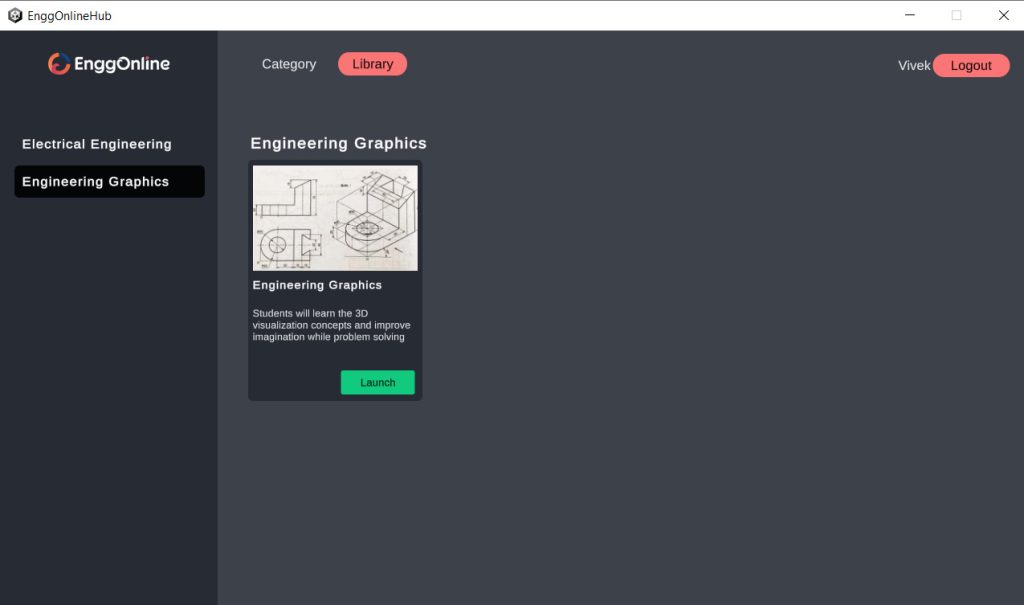
To launch the installed practical, simply click the “Launch” button, and the practical’s screen will appear.
Update the Practical
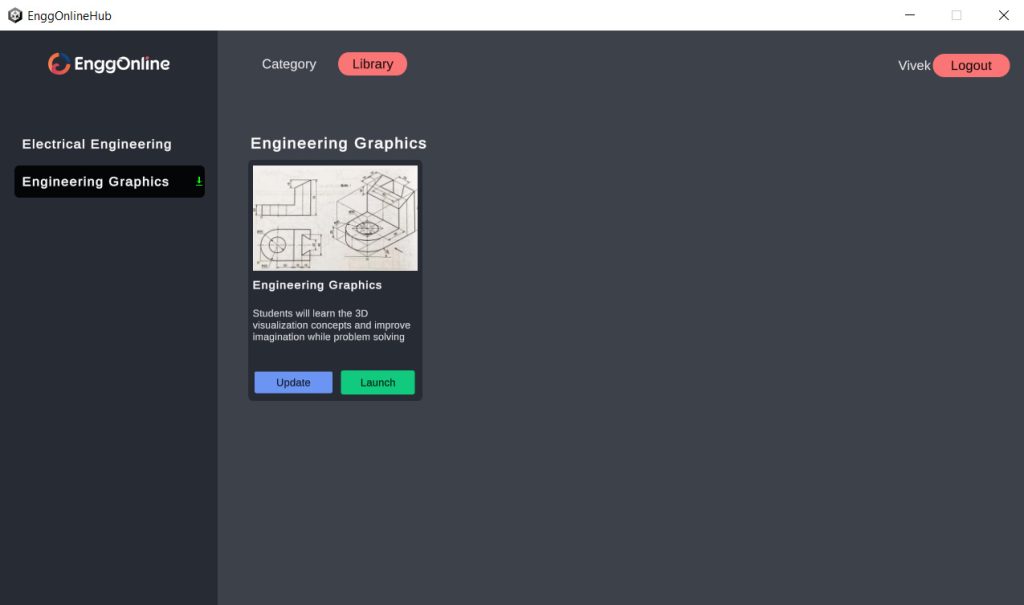
If an update is available for a specific practical, an “Update” button will be displayed for that practical to initiate the update process.


