
A comprehensive guide detailing the setup and operation of your VR headset, ensuring a seamless and immersive experience step by step.
01
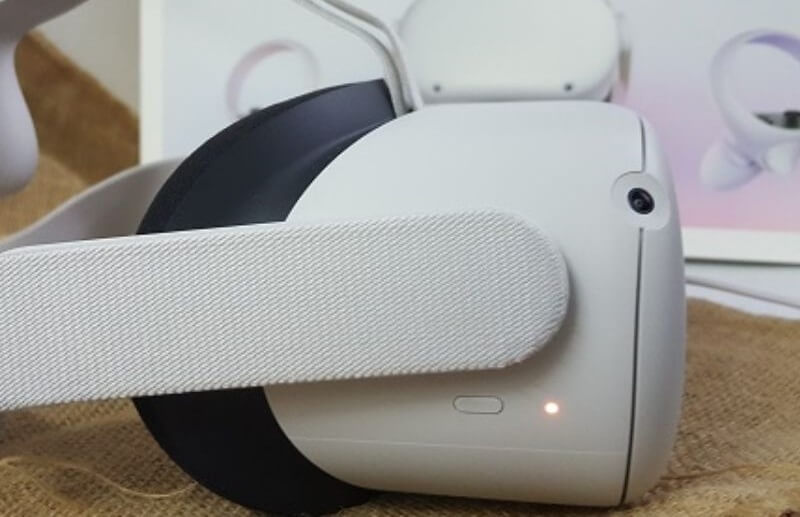
Switch on the computer and the VR headset.
02
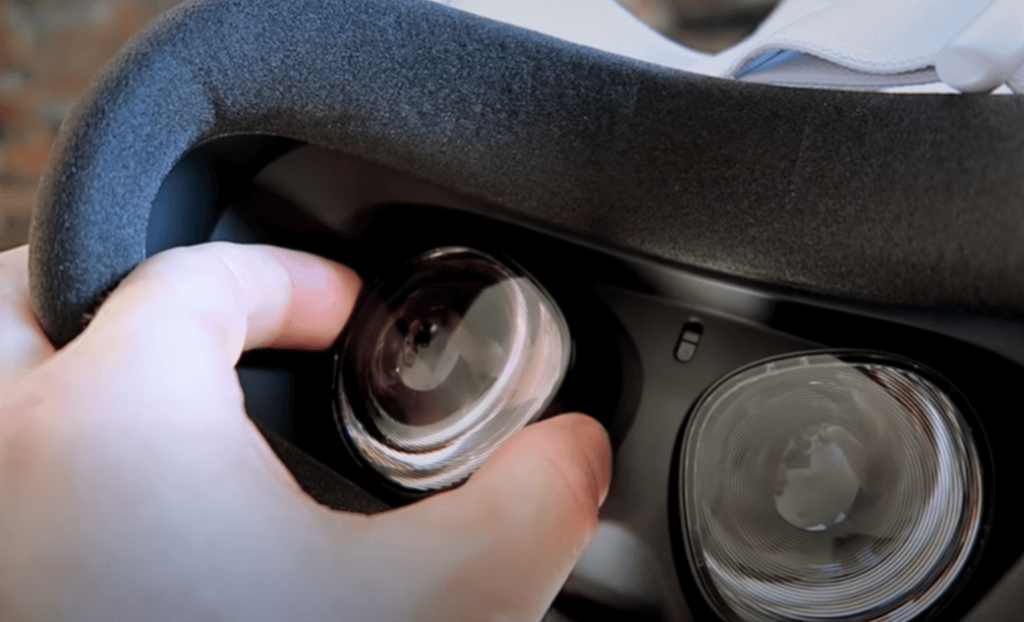
Adjust the eye levels till you get a clear image.
03
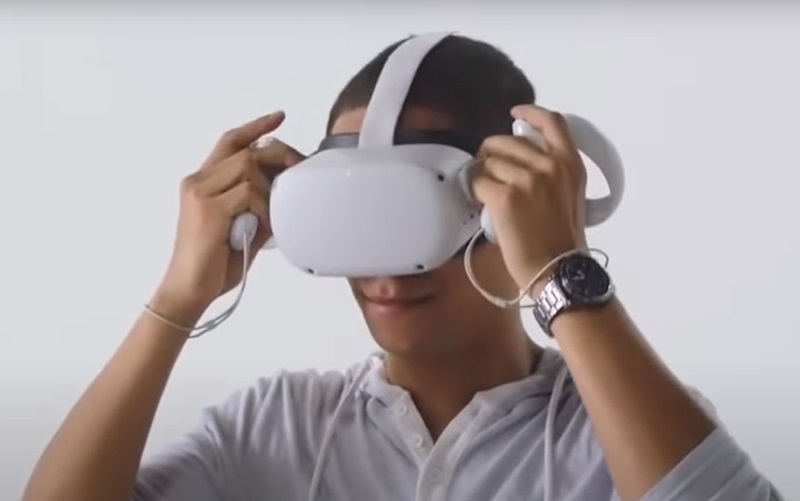
Wear the VR headset and adjust the straps.
04
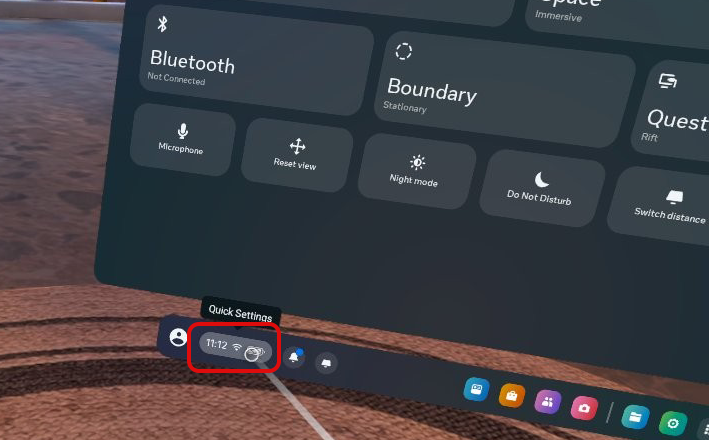
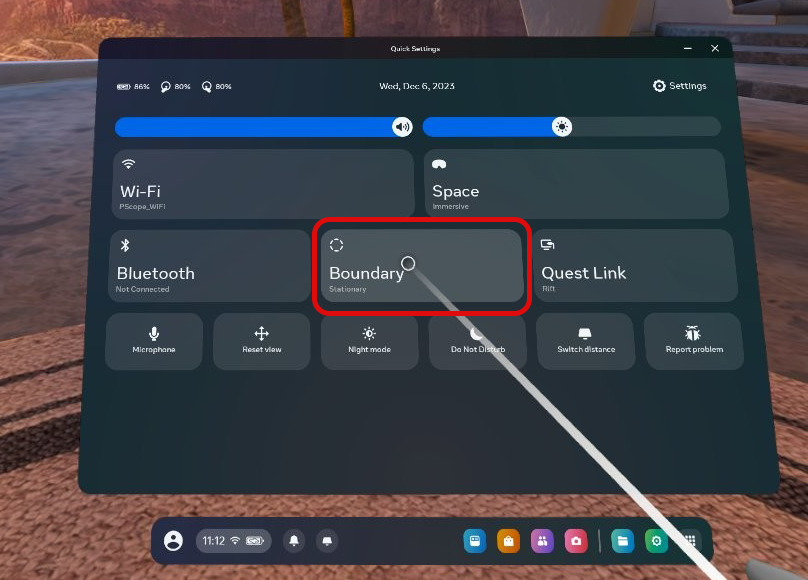
Select the Quick Settings button as highlighted in the image.
05
Select the Guardian/Boundary Button.
06
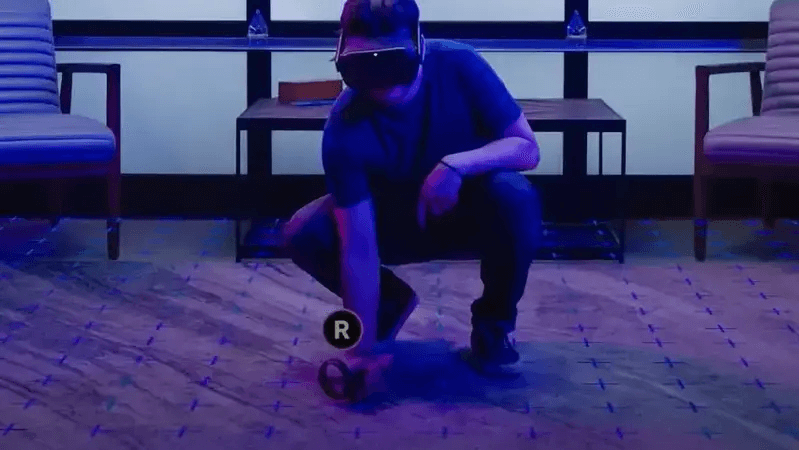
A pop-up will appear asking to adjust the floor level. Place one of the controllers on the floor as shown in the image & then click confirm.
07
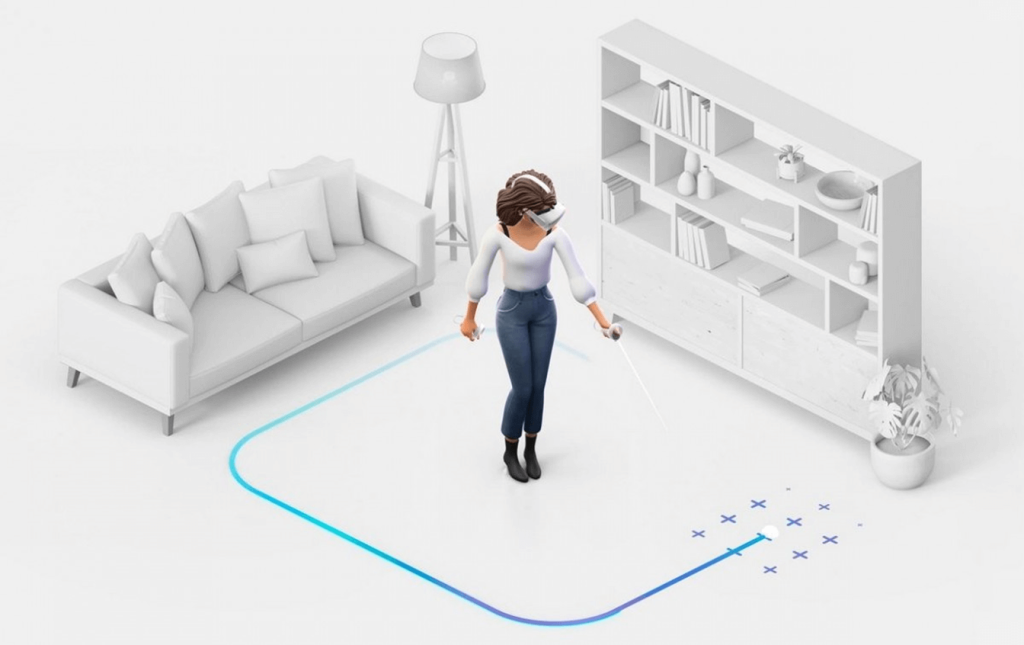
As shown in the image, click the trigger, draw a boundary around you and press confirm.
08
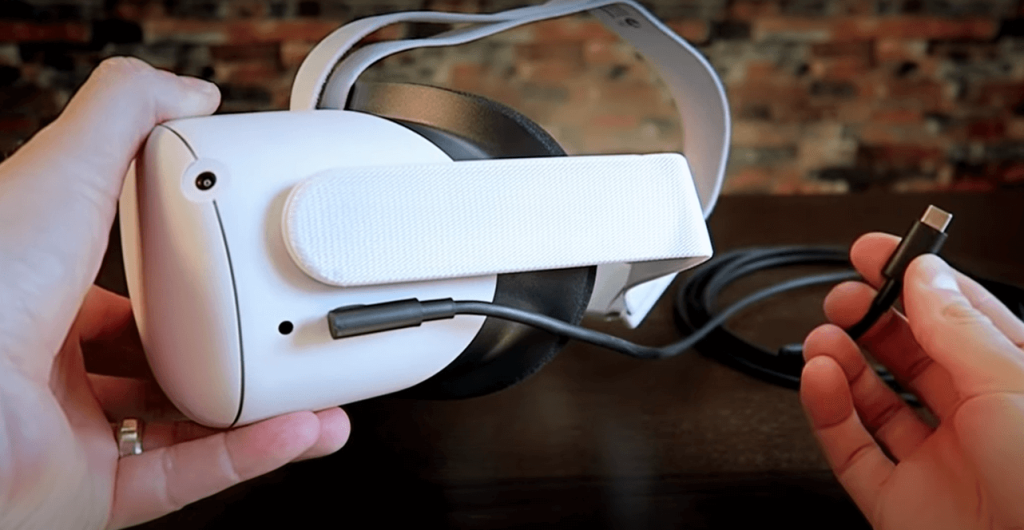
Connect the computer and VR headset with 16 feet long cable with USB to computer and ‘C’ port to VR headset.
09
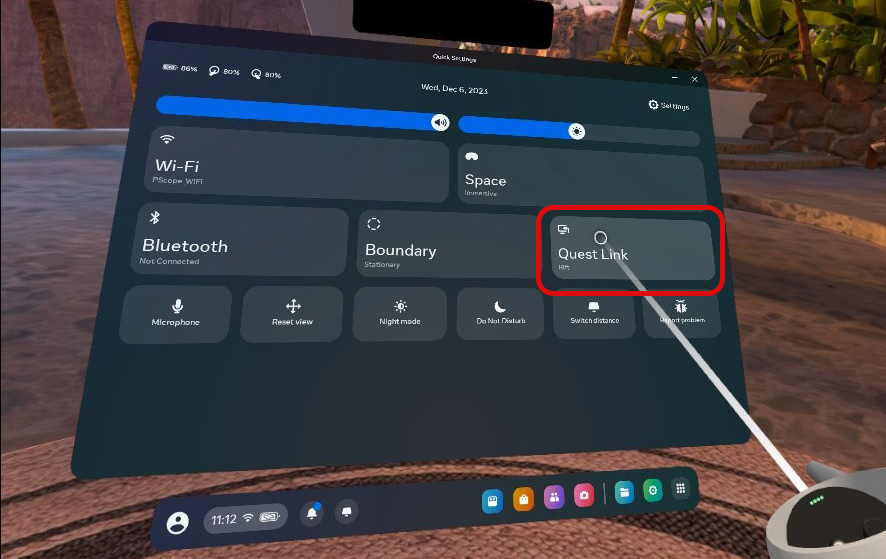
In the VR headset, a window will pop up asking permission to read the data. Select ‘allow to proceed’. Click the Quick Settings icon using the trigger and click the ‘Quest Link’ option.
10
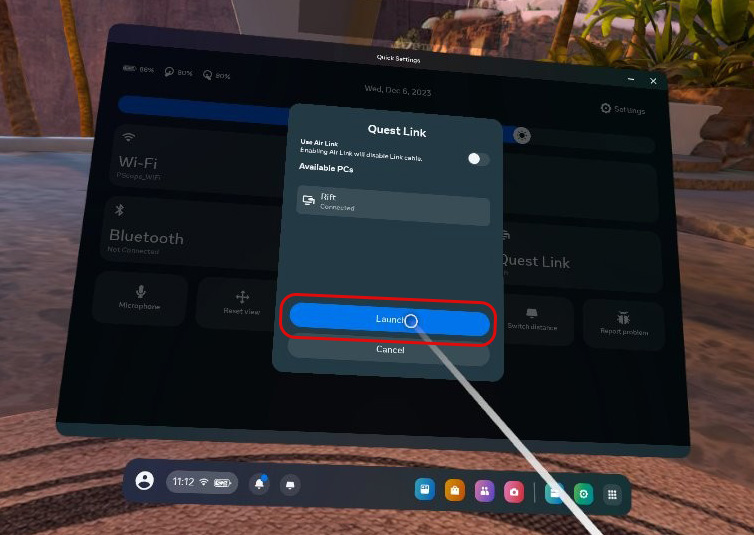
A new window will pop up with a launch option. Use triggers to select the ‘Launch’ option.
11
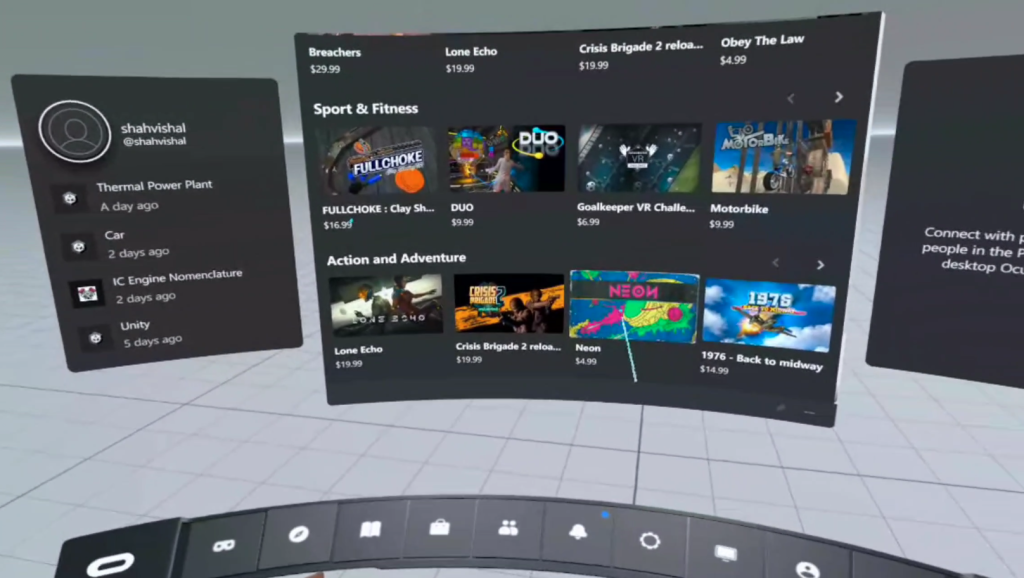
Wait for the following screen to appear after launching the Quest Link.


